In this example we run a report in the Parties module:
- Search for or retrieve a group of records in a module.
-
From the Ribbon, select Reports on the Home tab of the Ribbon.
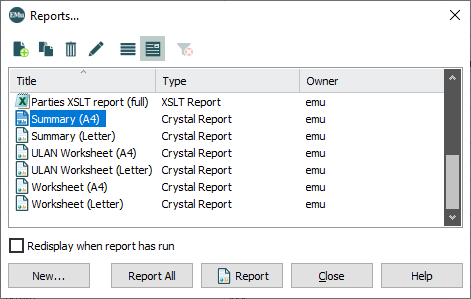
The Reports box displays with a list of predefined reports. The list includes the report name, its Type and the name of the owner of the report (who created it).
Note: Only the owner of a report can modify it.
- Select the report to be generated, Summary (A4) in this example:
 Important: Running Excel reports in EMu 10.0 onwards (release date 09 June 2026)
Prior to EMu version 10.0, UTF‑16LE files generated by EMu did not include a Byte Order Marker (BOM). Earlier Windows applications were able to infer file encoding without a BOM, so this omission rarely caused issues. However, modern Windows applications, including Office 365, now depend on the presence of a BOM to interpret file encoding correctly. Without it, files may be treated as ASCII, resulting in the incorrect display of Unicode characters.
From EMu version 10.0 onward (release date 09 June 2026), all UTF‑16LE files include a BOM to address this issue. While this ensures that Unicode characters display correctly, it does affect how Excel handles EMu report files as Excel uses the TAB character as the column delimiter for CSV files by default: as a result, when an EMu report is opened in Excel the content is presented in a single column with all data for each row contained in the first cell of the row.
To display the report data correctly, select the first column in Excel and run Text to Columns from the Data tab, then use the wizard to split the data using commas as the delimiter.
- Click Report to generate the report using the current The record currently displayed in Details View or highlighted in List View (there is a faint dotted line around it). It is only possible to have one current record at a time. record or selected A selected record is one that has been chosen either on its own or to as part of a group of records. It is usual to select the records you want to be affected by an operation before performing the operation. Selected records are used in many instances, e.g. when a number of records are to be: discarded, saved in a group, or attached to another record. A selected record displays on screen with a blue background when in List View. records
-OR-
Click Report All to generate the report using all listed records.
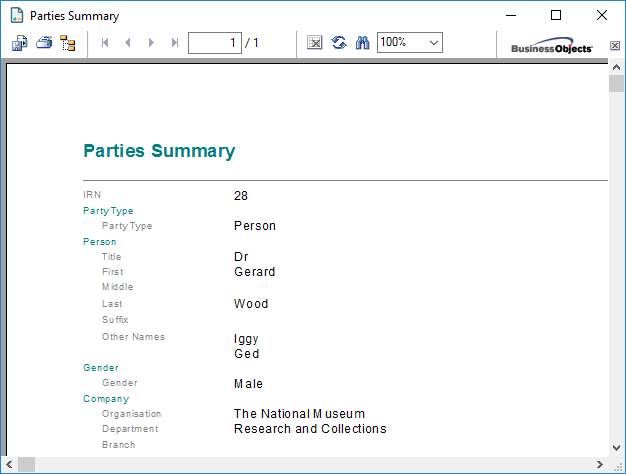
The report displays in the associated reporting application, Crystal Reports Viewer in this example: